Category Archives: Uncategorized

Who Do I Follow? Where Do I Go?

There are many helpful sites within the SQL Community and several more blog sites that I follow. My favorites are noted on this site; however one that keeps drawing me back time and time again is by Brent Ozar’s group. For those of you who have not had the opportunity to check the site out I’ll lay out some real world specifics on what has helped me and how I have benefited from such sites as this one.

The Webcast’s

Every Tuesday I usually find my way to their 30 minute webcast for treating pain points within SQL (among other topics). At the end of each web cast, if time permits, they will host a quick question and answer session over the topic to viewers. Check out future webcast’s here

Two Important Free Tools

There are two scripts that have seemed to help me tremendously over the course of the year. One is sp_Blitz (comes with a SSMS custom report) which a new version just came out; and the other is sp_BlitzIndex. I recently just started to use the sp_BlitzIndex but I liking this little utility while the other sp_Blitz I use when hitting new or old servers, you know the ones that you stumble upon that no one knows about and no one has a clue of what it is doing. Two great free utilities that are offered that may just save your hide one day.

Popular Topics

I like the fact that on the site they keep a section for Popular Topics that are happening within the industry; keeps me up to date and provides insight on some of the issues I experience on a daily basis. Some topics you may find:

The Team

The team makeup of Brent, Kendra, Jeremiah, and Jes makes it an easy choice for me to have in my arsenal of following. I try to find people in the industry of whom I consider for myself top in the industry and learn from them and their techniques to help better myself and further gain more knowledge.

Check it out

If you haven’t already done so go check their site out and what their about. Real people providing real solutions with some fun along the way.

Give Credit Where Credit Is Due

Should I give credit?

We’ve all been there; it’s late in the day and you have been staring at your screen for hours on end looking for an answer to your problem. After much testing; going back and forth you stumble upon an article on a technical website, blog, or Microsoft site that has the answer you have been looking for.

What’s Next?

As you look at the article and you implement the code that has been found you find that it works like a champ; your problem has been solved and crisis has been averted. Your colleagues come running up to you shaking your hand telling you that you are the greatest SQL DBA super hero that has ever lived, the boss comes over and pats you on your back and tells you that you are well on your way; all the while you never pipe up and say “Hey, I found this at…..”

The Reality

Okay maybe it doesn’t quite get that out of control but you get the picture. The temptation is there to take glory for something that you didn’t write or produce. Sure you’ve found the solution to the problem by doing hour of research but does one really take the time out of the high-fiving, chest bumping to note how you came up with the resolution?

Give Credit Where Credit Is Due

Here lately I have been on several technical blogs, had conversations where credit is taken for work that was done by someone else. I’ve seen it among teams, I’ve seen it nationally, and I’ve seen it accidentally. One thing that I enjoy about the SQL Community is that everyone is so helpful to provide assistance to others who are in need of help or need assistance in understanding an issue that they are working on. In saying that I believe it is of the utmost importance that if something is utilized that someone else has mentioned, wrote, helped with that you give credit where credit is due.

What Can I Do?

One might ask, how do I give credit to someone I don’t even know…….to me this is the most simplest of things. I’ve never met a person when I’ve approached them and asked them that I would like to mention them in my post about the tool, code, or article they produced turn me down.

I believe it is a way to show respect to our colleagues and to our community…..

I believe it is a justice that we must take on as a responsible SQL DBA……

I believe it is proper etiquette to display……..

Have you ever had a utility, piece of code, article that you created only to find out later that someone took credit for it? I implore others who may come across this article to take a step back and give others credit where credit is due. You’ll be glad you did and at the end of the day just be honest.

SSIS 2012 Style – Not So Bad After All

Okay okay, maybe DTS left a bad taste in my mouth or maybe it was because I’ve developed over 256 DTS packages and I still twitch at night. Or maybe I used the first edition of SSIS and while it was better than DTS I still wasn’t a fan; then one of my old colleagues touched base with me and told me that I needed to give the new SSIS version a shot.  He was curious about what I thought, I reluctantly held him at bay for a while but then an opportunity presented itself one day last week. A current colleague approached me with an issue where he had some .txt files that contained SQL code in them that he was running manually.

The first thing that popped in my head was giving SSIS another shot, I initially said no way not going there but figured ah what the heck – lets give it a try. Now the task at hand was quite simple really and by no means did I over complicate anything. I just wanted to take the files and load them to help my buddy out. Took me all of 8 minutes to whip a quick package up. Below is a representation of how I accomplished this; I will try to elaborate step by step.

I’m assuming that one already knows how to open SSIS in Studio…….

Step 1: Connection Managers – will need 3 of them

  1. Connection Manager (new database connection) will house the server name and database on the server
  2. SMTP Connection Manager – this pertains to the email functionality and the SMTP server
  3. File Connection Manager – empty connection for existing file that will be used in a later step

Step 2: From the toolbox I selected my “For Each Loop Container” this will allow me to loop through “all” files that I’m looking for in my specified directory. Double click the Container and or go to the properties and you will be presented with the below window. For my testing purposes I created a test folder called Test1 on my local drive. The files that I need to loop through are .txt files; in my example I am going to load all .txt files within the directory.

Step 3: From the tool box drag the Execute SQL Task over into the For Each Loop Container.

Double click on the Execute task to go to the properties section. The connection will need to be the connection from the Connection Manager that was setup in Step 1. Next the FileConnection will need to be the SQL connection set up in the Connection Manager that was established also in Step 1.

Step 4: I always set up a SMTP Connection Manager so I can utilize the send mail task from the tool box. This allows for me to communicate on failure or success to the appropriate parties. Simply drag two send mail tasks from the tool box and in the properties section add your SMTP server and how you want to connect. Click on the for each loop container and drag the arrow to your send mail tasks; to change for failure right click the arrow and select on failure.

Pretty simple in a nut shell. I felt the tools were very easy to use and while SSIS does a lot more powerful operations this solution provided a way for me to loop through my files in the designated directory, load them in without issues, and a method for notification.

Not covered in here but I will touch on is the fact that I liked the ispacs that deployment utility created. I found it much easier than using the manifest etc. All in all I was quite pleased.

Few Of My Favorite Articles From Others

I enjoy getting viewpoints by others in the community, the other day I sat down and started to ponder on some of the articles I’ve read that have either helped me along my way and career or have sparked me to think about how I would apply what I read to an issue I was having.

Below are 5 articles written by others in the community that I’ve read over time that have helped me; they are in no particular order and I’ll do my best to give a brief synopsis of what each represent are:

Chris Shaw – Utility Databases –  this topic is geared toward having a utility database at your disposal as a DBA. The link is for Chris’ demo; I first heard this topic at PASS 2011, made so much sense to me to have a database at your disposal to keep as a repository to report off of and trend. This idea sparked other ideas which has lead to a full blown monitoring solution for me.

Adam Machanic – sp_WhoIsActive – I am going to take the blurb directly from Adam’s site. If you don’t have this tool I recommend getting it. “Who is Active? is a comprehensive server activity stored procedure based on the SQL Server 2005 and 2008 dynamic management views (DMVs). Think of it as sp_who2 on a hefty dose of anabolic steroids.~ Adam Machanic”. I highly recommend checking this one out

Glenn Berry – Diagnostic Query – The link will take you to different SQL versions of his diagnostic queries. These have helped me tremendously throughout my time as a DBA.

Brent Ozar – sp_Blitz – I enjoy reading from Brent’s outfit. If you have never been to his blog you should check it out. Jeremiah Peschka, Kendra Little, and Jes Borland have some great stuff they blog about. When I switched jobs I used Brent’s “free” utility to help with me learning what the servers were and what I was dealing with. For me this was a life saver. I give Brent and his team credit on this one.

John Sansom – How To Become A DBA – in this awesome article I liked John’s “How to become an outstanding DBA section”

I have many more articles that I will share periodically but these are just some to start with that I think from my standpoint have helped me. Hope you can get as much out of them as I have……….I’m tempted to just go ahead and start doing something like this monthly or weekly haven’t decided yet.

Have a good one!

Filtered Indexes 2012 Style

I recently was approached by some fellow DBA friends of mine inquiring about filtered indexes in SQL 2012 (never really got into them too much in 2008; just on a minimal basis). In researching I found that they could be very useful for what I encounter on a daily basis.

What exactly is a filtered index? The best way that I can describe it is an optimized non clustered index that is used to cover queries pulled from a very unique and defined subset of data. In researching, I have found that it uses a filter predicate that indexes a portion of rows in a table; not only can it improve query performance, which we all want, but is also can reduce the index maintenance and storage cost.

Filtered vs. Full-Table Indexes

Accuracy is key here. Because the filtered index only covers the rows in the filtered index the statistics will be more accurate; it also is smaller than a full table non clustered index

Reducing Index Storage Costs

Everyone always talks about disk storage and how important it is. A filtered index can greatly reduce the storage, especially when a full table index is not necessary.

Reduction in Maintenance Costs

A filtered index is only changed when the data within that filter changes; and if you think about because of the smaller size of the index it reduces the cost of updating the statistics.

What kind of Permissions are needed

Filtered indexes require Alter permissions on the table or view. The user must be a member of the sysadmin fixed server role or the db_ddladmin and db_owner fixed database roles.

Limitations / Restrictions

With everything else filtered indexes do have their limitations, restrictions, and yes even considerations in how you design them.

Some of the limitations are noted below:

  1. A filtered index cannot be created on a view. However there is a gotcha to this which when research is done will show you how the query optimizer can benefit from a filtered index on a table that utilizes a view
  2. Filtered indexes are defined on one table

Other Notes

With any new trick so to speak you always need to try it out in a sandbox or a local environment. I behoove you to conduct your own research prior to implementing. This post just starts to scratch the surface with filtered indexes. I’ve enjoyed the research and testing I’ve done thus far with them on 2012; I think it is definitely worth checking out if you are looking for some new ways to incorporate indexing


Is My Table Part of Replication?

Recently, I had someone approach me asking if a table was being utilized for replication. The person didn’t posses the knowledge of the different methodologies to track this information down.

While there are several ways to accomplish this goal one of the quickest is to run a query. The below query will provide you the publication to which your table is found in. This is extremely helpful when you have multiple publications for a database and one is unsure which one it is located in.

USE [DBNAME]
GO

SELECT sps.name
FROM syspublications sps WITH ( NOLOCK )
JOIN sysarticles sas WITH ( NOLOCK ) ON sps.pubid = sas.pubid
WHERE sas.name = ‘TableName’

Replace the [DBNAME] with the database that your table is found in, and replace the ‘TableName’ in the where clause with your table.

How Much Longer?

There have been instances in my career where I’ve had to perform backups off a routine schedule; I mean it’s inevitable, right? It’s nice to look at job history to see about how long the backup job normally takes; can give an estimate or an ideal of what to expect.

However, if you are like me I like to monitor and keep an eye on how much longer my backup will take. Below is a T-SQL script that I’ve picked up and tweaked over the years to help determine an estimated time on how much longer my backup will take.

SELECT r.session_id ,
r.command ,
CONVERT(NUMERIC(6, 2), r.percent_complete) AS [Percent Complete] ,
CONVERT(VARCHAR(20), DATEADD(ms, r.estimated_completion_time,
GETDATE()), 20) AS [ETA Completion Time] ,
CONVERT(NUMERIC(10, 2), r.total_elapsed_time / 1000.0 / 60.0) AS [Elapsed Min] ,
CONVERT(NUMERIC(10, 2), r.estimated_completion_time / 1000.0 / 60.0) AS [ETA Min] ,
CONVERT(NUMERIC(10, 2), r.estimated_completion_time / 1000.0 / 60.0
/ 60.0) AS [ETA Hours] ,
CONVERT(VARCHAR(1000), ( SELECT SUBSTRING(text,
r.statement_start_offset / 2,
CASE WHEN r.statement_end_offset = -1
THEN 1000
ELSE ( r.statement_end_offset
– r.statement_start_offset )
/ 2
END)
FROM sys.dm_exec_sql_text(sql_handle)
))
FROM sys.dm_exec_requests r
WHERE command IN ( ‘RESTORE DATABASE’, ‘BACKUP DATABASE’ )

I apologize beforehand of the code being so choppy; my plugin editor is not working properly at the moment. The result set of this code set will provide you the following columns:

  • Session_id
  • Command
  • Percent Complete
  • ETA Completion Time
  • Elapsed Min
  • ETA Min
  • ETA Hours

There you have it; pretty straight forward and when a backup is kicked off you can execute this query to determine how much longer the backup will take. If my memory serves me correct I’ve ran this on SQL 2005 or greater.

24 Hours of PASS

SQL Training……..to a SQL DBA I’m always up for any training to learn new techniques, new features, or new processes. You throw in the word FREE and how can you help not be excited about what PASS has to offer.

PASS has recently released their lineup for the free 24 hr SQL training with some stellar presenters and some great topics. To check out the sessions and register for any of the online classes you want you can click below:

24 hours of PASS SQL Training

Enjoy!

Linked Server Set-Up

At times I take for granted some of the features that SQL has to offer. One of the features that I was asked about from some fellow colleagues is setting up a Linked Server. First, what is a Linked Server? A linked server basically allows a SQL Server Database engine to execute commands against OLE DB data sources outside the instance of SQL Server. There are some advantages in having a

Linked Server a few just to mention are:

  1. The ability to access data from outside of SQL Server
  2. The ability to issue distributed queries, updates, commands, and transactions on data sources
  3. The ability to address diverse data sources

CONFIGURING A LINKED SERVER

One of the ways that you can set up a linked server is through SSMS; you can perform the following tasks:

  • Connect to a server in SSMS
  • Expand the Server Objects
  • Right click Linked Servers
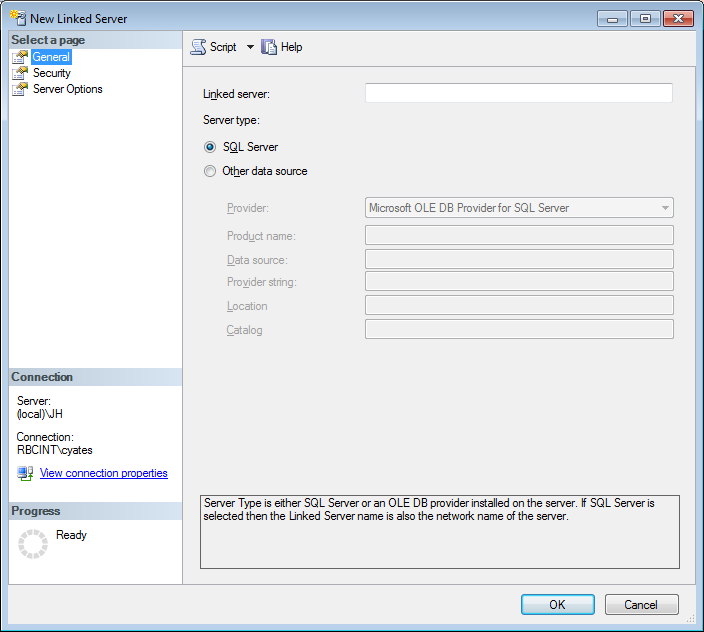
  • Select a new linked server

The first box allows you to select a specific server type.

The security section will allow you to define the logins.

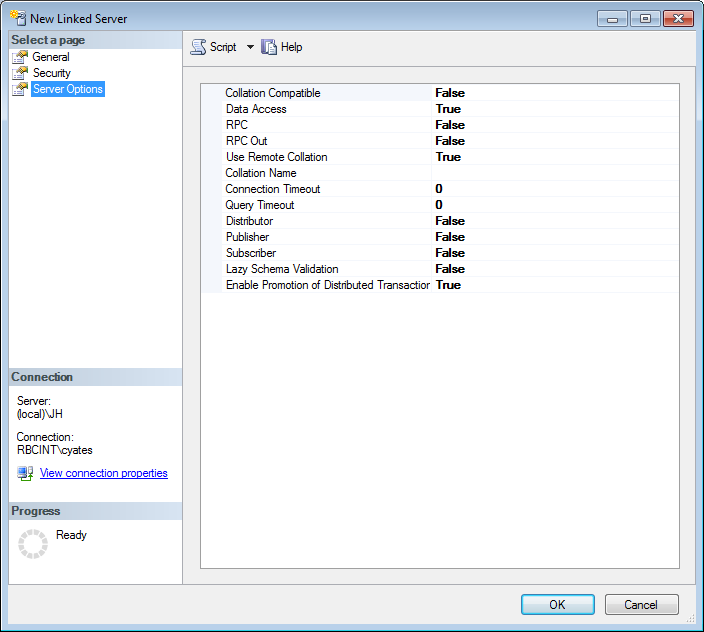
Under server options ensure the data access value is set to true

From there you can test the connection and ensure the validity of the setup has been completed correctly.

For further research you can review some of the documentation in the below links from Microsoft (some are from prior versions of SQL but the gist is still the same):

Linked Server Database Engine

Creation of Linked Server

Orphaned SQL Instances

It has been some time since I have ran into this issue; however yesterday brought back some old memories of my early years as a developer and then DBA – orphaned instances. Currently, I run 3 SQL instances on my machine. I kept SQL Server 2008 R2 installed as well as SQL Server 2012 as I have some needs for both that I won’t necessarily go into in this post.

I had some instance name issues that I had to work through when I installed 2012 on my machine that I knew I was going to have to go back and clean up at a later time. Well, that time came yesterday. As I uninstalled 2008 R2, I must have performed a misstep and in essence ended up with two orphaned instances on my box. Most people would not be thrilled with this scenario however I was pretty stoked as I knew that I could use this to brush up on how to get rid of them.

I wanted to have a fresh install of 2012 only on my machine so I uninstalled 2012 and then it was time to deal with my orphaned instances.

Before I share this I want to iterate that this is how “I” handled this situation and  it requires manual intervention. I re-tested this out on another box as well just to provide a second test. I would not recommend doing anything on a prod environment until you test it out; no matter what blog or article you get your information from. One, it helps you to understand what you are doing and two provides security in that you can perform the tasks.

Okay so below are my steps I took to manually remove my orphaned instances:

  1. Click on the Start menu, choose Run and type in Regedit (nervous yet?)
  2. Go to HKEY_LOCAL_MACHINE\Software\Microsoft\Microsoft SQL Server
  3. Remove all sub-directories and Instance name folder
  4. Delete the folder from % Program Files%\Microsoft SQL Server\%name%

Once completed I like to do a fresh reboot; then when you perform your installation the old orphaned instances are no longer available.

I did not share my instance names as they may vary across the board but this is a quick way to manually clean up orphaned instances. I do implore you to use extreme caution when dealing with Regedit. If you do not know what you are doing you can do some major damage to your box.