How Much Longer?

There have been instances in my career where I’ve had to perform backups off a routine schedule; I mean it’s inevitable, right? It’s nice to look at job history to see about how long the backup job normally takes; can give an estimate or an ideal of what to expect.

However, if you are like me I like to monitor and keep an eye on how much longer my backup will take. Below is a T-SQL script that I’ve picked up and tweaked over the years to help determine an estimated time on how much longer my backup will take.

SELECT r.session_id ,
r.command ,
CONVERT(NUMERIC(6, 2), r.percent_complete) AS [Percent Complete] ,
CONVERT(VARCHAR(20), DATEADD(ms, r.estimated_completion_time,
GETDATE()), 20) AS [ETA Completion Time] ,
CONVERT(NUMERIC(10, 2), r.total_elapsed_time / 1000.0 / 60.0) AS [Elapsed Min] ,
CONVERT(NUMERIC(10, 2), r.estimated_completion_time / 1000.0 / 60.0) AS [ETA Min] ,
CONVERT(NUMERIC(10, 2), r.estimated_completion_time / 1000.0 / 60.0
/ 60.0) AS [ETA Hours] ,
CONVERT(VARCHAR(1000), ( SELECT SUBSTRING(text,
r.statement_start_offset / 2,
CASE WHEN r.statement_end_offset = -1
THEN 1000
ELSE ( r.statement_end_offset
– r.statement_start_offset )
/ 2
END)
FROM sys.dm_exec_sql_text(sql_handle)
))
FROM sys.dm_exec_requests r
WHERE command IN ( ‘RESTORE DATABASE’, ‘BACKUP DATABASE’ )

I apologize beforehand of the code being so choppy; my plugin editor is not working properly at the moment. The result set of this code set will provide you the following columns:

  • Session_id
  • Command
  • Percent Complete
  • ETA Completion Time
  • Elapsed Min
  • ETA Min
  • ETA Hours

There you have it; pretty straight forward and when a backup is kicked off you can execute this query to determine how much longer the backup will take. If my memory serves me correct I’ve ran this on SQL 2005 or greater.


24 Hours of PASS

SQL Training……..to a SQL DBA I’m always up for any training to learn new techniques, new features, or new processes. You throw in the word FREE and how can you help not be excited about what PASS has to offer.

PASS has recently released their lineup for the free 24 hr SQL training with some stellar presenters and some great topics. To check out the sessions and register for any of the online classes you want you can click below:

24 hours of PASS SQL Training

Enjoy!

Linked Server Set-Up

At times I take for granted some of the features that SQL has to offer. One of the features that I was asked about from some fellow colleagues is setting up a Linked Server. First, what is a Linked Server? A linked server basically allows a SQL Server Database engine to execute commands against OLE DB data sources outside the instance of SQL Server. There are some advantages in having a

Linked Server a few just to mention are:

  1. The ability to access data from outside of SQL Server
  2. The ability to issue distributed queries, updates, commands, and transactions on data sources
  3. The ability to address diverse data sources

CONFIGURING A LINKED SERVER

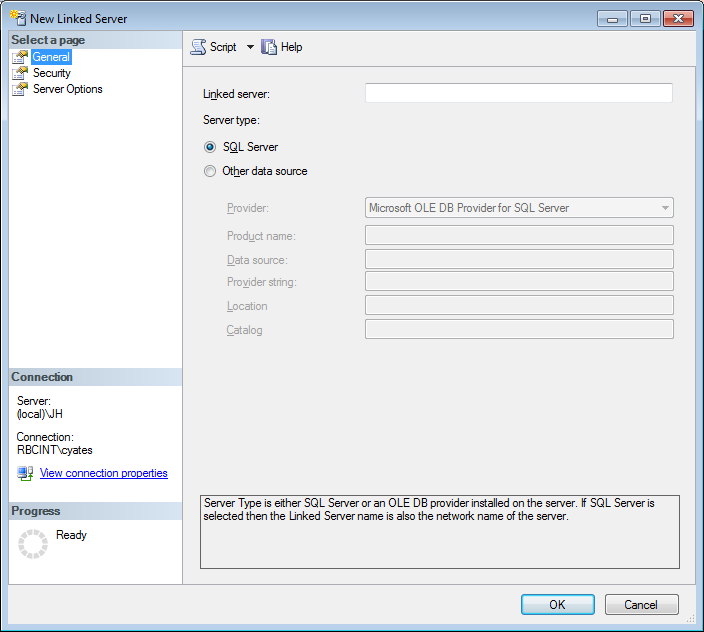
One of the ways that you can set up a linked server is through SSMS; you can perform the following tasks:

  • Connect to a server in SSMS
  • Expand the Server Objects
  • Right click Linked Servers
  • Select a new linked server

The first box allows you to select a specific server type.

The security section will allow you to define the logins.

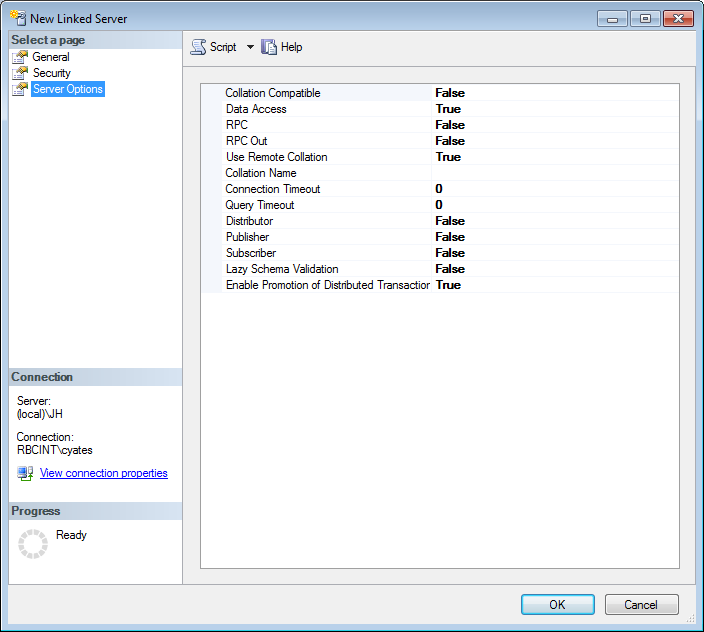
Under server options ensure the data access value is set to true

From there you can test the connection and ensure the validity of the setup has been completed correctly.

For further research you can review some of the documentation in the below links from Microsoft (some are from prior versions of SQL but the gist is still the same):

Linked Server Database Engine

Creation of Linked Server

Orphaned SQL Instances

It has been some time since I have ran into this issue; however yesterday brought back some old memories of my early years as a developer and then DBA – orphaned instances. Currently, I run 3 SQL instances on my machine. I kept SQL Server 2008 R2 installed as well as SQL Server 2012 as I have some needs for both that I won’t necessarily go into in this post.

I had some instance name issues that I had to work through when I installed 2012 on my machine that I knew I was going to have to go back and clean up at a later time. Well, that time came yesterday. As I uninstalled 2008 R2, I must have performed a misstep and in essence ended up with two orphaned instances on my box. Most people would not be thrilled with this scenario however I was pretty stoked as I knew that I could use this to brush up on how to get rid of them.

I wanted to have a fresh install of 2012 only on my machine so I uninstalled 2012 and then it was time to deal with my orphaned instances.

Before I share this I want to iterate that this is how “I” handled this situation and  it requires manual intervention. I re-tested this out on another box as well just to provide a second test. I would not recommend doing anything on a prod environment until you test it out; no matter what blog or article you get your information from. One, it helps you to understand what you are doing and two provides security in that you can perform the tasks.

Okay so below are my steps I took to manually remove my orphaned instances:

  1. Click on the Start menu, choose Run and type in Regedit (nervous yet?)
  2. Go to HKEY_LOCAL_MACHINE\Software\Microsoft\Microsoft SQL Server
  3. Remove all sub-directories and Instance name folder
  4. Delete the folder from % Program Files%\Microsoft SQL Server\%name%

Once completed I like to do a fresh reboot; then when you perform your installation the old orphaned instances are no longer available.

I did not share my instance names as they may vary across the board but this is a quick way to manually clean up orphaned instances. I do implore you to use extreme caution when dealing with Regedit. If you do not know what you are doing you can do some major damage to your box.

DBA Deployments

There are many aspects a DBA must handle on a daily, monthly, yearly basis. One that has been sticking out to me in recent weeks is deployment methodologies and the various ones that other people might have in place.

For example:

My current process utilizes TFS and RedGate tools. Below is a representation of what a deployment of mine might look like.

  • Code is checked in to source control by developer
  • A release is created consisting of bugs and tasks within TFS by a release manager
  • Once the release is put into place in TFS a comparison with in TFS is completed on the branch or by a label to see what was deployed out to our first landing zone ( a QA environment) from the last deployment
  • The latest code is gotten from Red Gate SQL Source Control
  • Using Red Gate SQL Compare differences are compared and pushed based on what was scheduled on the release ticket

Now this is just a very high level view without all the intricate workings that are not defined out in this post. I am always looking for ways to improve processes and be as productive as can be. I am curious as to what others might be using or the different methodologies and processes that others in the community use to deploy out to their respective environments.

Fill free to drop me a line or comment.

Job History Is Missing

I ran into an interesting issue this morning after upgrading to SQL 2012 that I did not know existed. I had a job fail for various reasons and was alerted like normal of the failure. Upon going to the SQL agent to view the history of the job I found nothing in the history – which I thought was odd. I decided to hop over to the sysjobshistory table and sure enough my history was all there as expected. So what is the correlation? Why was my job history in the table but not being shown in the view history on the agent?

I  noticed a message on the bottom left where the status and progress sections are in the properties section of the Log File Viewer for the job – the message read “The given key was not present in the dictionary”. Upon doing some research it so happens that a known bug was discovered with special characters in job names. In my job, for whatever reason, it had a “,” in the name of it. In digging some more I could find only the term “Special Characters” was being thrown about, but I could not find a specific listing of what special characters…was it 1,2,3 or all?

Once I removed the “,” from the name and re-ran the job upon completion the history itself was re-populated in the agent with no issues.

I decided even further to test this out; I put the comma back in the job and then scripted the job out to see if it would error, to my surprise it did not error out. I would have expected it to error on script creation due to the comma; I guess that the bug runs a bit deeper than I initially thought.

Microsoft has responded that this will be resolved in the next SP release of 2012; I figured if anyone else runs across this that the information might help.

Which Publication Are My Tables In

Ever been in a deployment situation where the deployment script breaks due to a table being replicated? I have – many times. Hopefully this tidbit of information will help you in your future deployments.

When I receive a scheduled or even a non scheduled deployment I like to prep for it so I don’t have any surprises at the actual time of deployment. I use Red Gates SQL Compare tool for my deployments; whatever your mechanism is the methodology is similar.

Table A is being replicated from the publisher down to a reporting environment lets say; Table A has a modification to some part of the schema. If Table A is being replicated you will receive an error on deployment stating that the table is being “published” for replication.

What I like to do is review the schema before hand; I have a pretty good working knowledge of what I am replicating over but I also deal with 17 publications that house various amounts of tables and I might not be able to recall where all the tables are in what publications.

In order for me to figure this out quickly I use the following script. I do not have a use statement at the beginning; however I do run this in the specific database that I am deploying to:

SELECT sps.name
FROM syspublications sps WITH ( NOLOCK )
JOIN sysarticles sas WITH ( NOLOCK ) ON sps.pubid = sas.pubid
WHERE sas.name = ‘tablename’ –change to your table name

By running the above script it will allow you to find what publication the table is being replicated in. From there you can script out the drop and create statements for the publication and continue on with your deployment.

Recompile Option – Yes, No, Maybe?

This seems to be hot topic right now among my peers here locally and even abroad ~ To Recompile or Not to Recompile that is the question at hand.

I’ve been associated with companies in the past where utilizing this option is almost a standard; then I’ve been with companies to where it was never used at all. What is my personal preference?  I don’t use the option all of the time but I do have some use for it in my daily checks of the systems I monitor.

My two real world examples I just ran into not long ago are some simple ones but thought I would share……..

  • I kept on having some issues with a stored proc and I knew that what I was troubleshooting was off kilter and wasn’t adding up in my head on what I was seeing in some of the results. In diving into the query of course I saw the recompile option which of course told me that anything in my plan cache I should just throw out the window……I love using my DMV’s and what not; however on a recompile each time a proc is used puts a damper on my assessments at times. There is a trade off when using the recompile option to improve performance, just something to keep in mind.
  • One aspect I do use the recompile option for is my diagnostic queries of my environments. Prime example: I’m a fan of Glenn Berry’s Diagnostic scripts he’s put together with some of my own customized ones. When running these, I personally, don’t care how they are stored in the plan cache etc.

I recently had the opportunity to sit in on a good session about this by Kendra Little over at Brent Ozar PLF ( good group of guys and if you haven’t ever checked them out I implore you to do so; they have some great items they discuss and free weekly training ). Kendra goes through some real world examples in her demo and it would behoove you to give it a look.

As I said earlier I’d love to hear some of your experiences with the option and the pros and cons you may have on it. If you have time drop me a line.

Site Maintenance ~ Excuse The Mess

Over the course of the next week I plan on making a face lift to the site. Hopefully will help streamline the content bit better and provide a cleaner look and feel.

If at anytime anyone experiences some weird look or something not lining up correctly bare with me. It will return to normal soon!!

Static Data

Static Data Scripts


Ever had to wipe out tables only to put data back into the table such as maybe look up tables or some tables that never really ever change but maybe on a yearly basis?

To me static data scripts are integral in a sense it keeps you from re-inventing the wheel over and over again. In thinking of this topic I realized that I had some gaps myself I could shore up and get some quick scripts created so that when the time comes I have them at my disposal.

A basic template to go buy can be something like the one below:

/***************************************
*** Static data management script ***
***************************************/

PRINT ‘Updating static data table [dbo].[tabl1]’

— Turn off affected rows being returned
SET NOCOUNT ON

— Change this to 1 to delete missing records in the target
— WARNING: Setting this to 1 can cause damage to your database
— and cause failed deployment if there are any rows referencing
— a record which has been deleted.
DECLARE @DeleteMissingRecords BIT
SET @DeleteMissingRecords = 1

— 1: Define table variable
DECLARE @tblTempTable TABLE (
[Id] int,
[Info1] BIT
)

— 2: Populate the table variable with data
INSERT INTO @tblTempTable ([Id], [Info1])
VALUES (‘1′, ’10’)

— 3: Delete any missing records from the target
IF @DeleteMissingRecords = 1
BEGIN
DELETE FROM [dbo].[tabl1] FROM [dbo].[tabl1] LiveTable
LEFT JOIN @tblTempTable tmp ON LiveTable.[Id] = tmp.[Id]
WHERE tmp.[Id] IS NULL
END

— 4: Update any modified values with the values from the table variable
UPDATE LiveTable SET
LiveTable.[Info1] = tmp.[Info1],
FROM [dbo].[tabl1] LiveTable
INNER JOIN @tblTempTable tmp ON LiveTable.[Id] = tmp.[Id]

— 3: Insert any new items into the table from the table variable
INSERT INTO [dbo].[tabl1] ([Id], [Info1])
SELECT tmp.[Id], tmp.[Info1]
FROM @tblTempTable tmp
LEFT JOIN [dbo].[tabl1] tbl ON tbl.[Id] = tmp.[Id]
WHERE tbl.[Id] IS NULL

PRINT ‘Finished updating static data table [dbo].[tabl1]’

GO

I know in times past this type of methodology has saved me some hours here and there and if you have data that you know will not change, especially if you push from one environment to another makes life a little easier.